
Follow this guide to learn how to update your payment method for Hostie.
The steps in this guide are the same, whether you're on the Hostie dashboard for the web, the Hostie app for iPhone, or the Hostie app for iPad.
Use the links below to jump to specific areas, or read from top to bottom and use the links within each section to navigate between areas:
-
Adding a new payment method
-
Setting a payment method as 'Default'
-
Removing a payment method
Adding a new payment method (return to top)
-
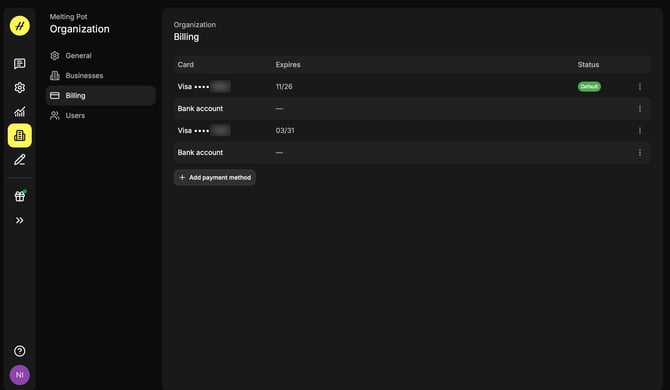
Navigate to the 'Organization' tab on the left-hand menu
-
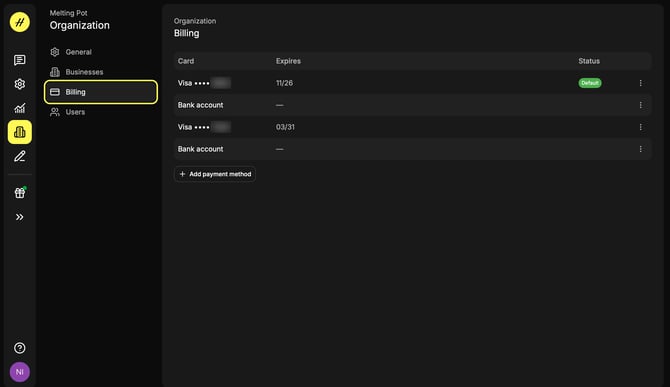
Select 'Billing'
-
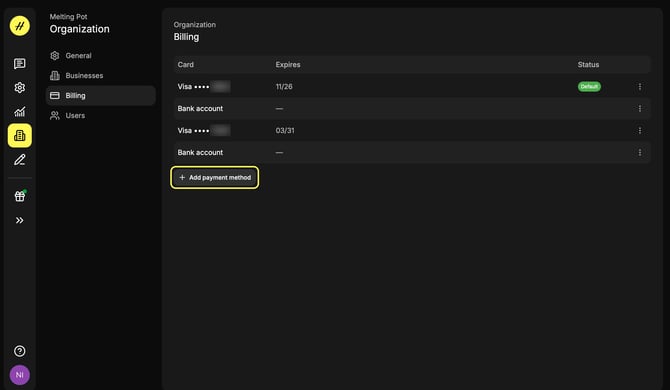
Select '+ Add payment method'
-
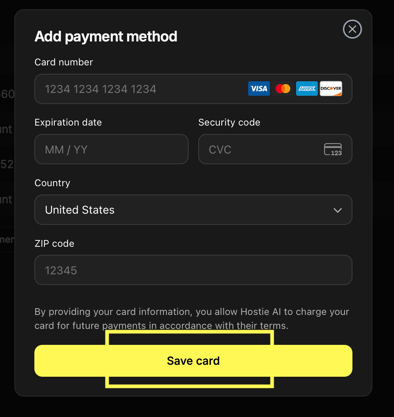
Enter card details
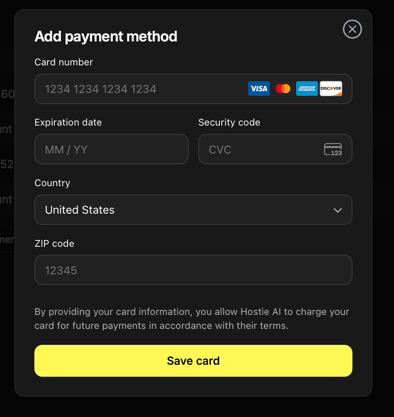
- Select 'Save Card'
Removing a payment method (return to top)
-
Navigate to the 'Organization' tab on the left-hand menu
-
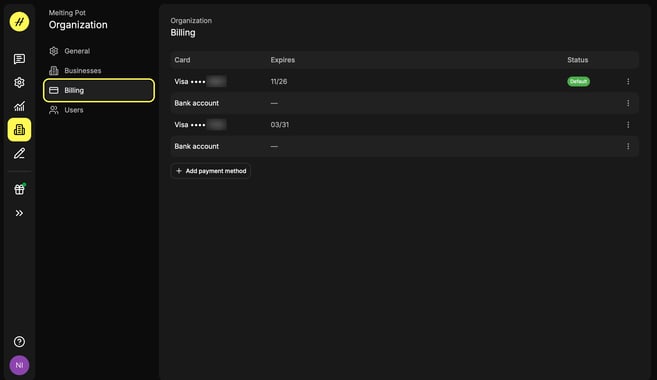
Select 'Billing'
-
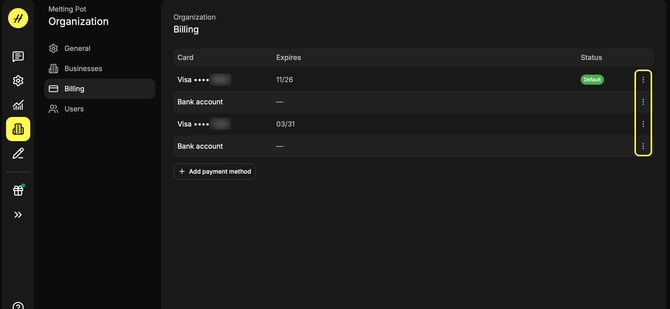
Select the three dots on the right-hand side of the payment method you want to remove
-
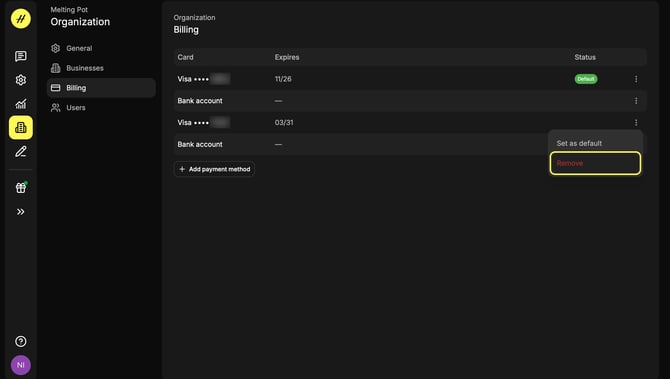
Select 'Remove'
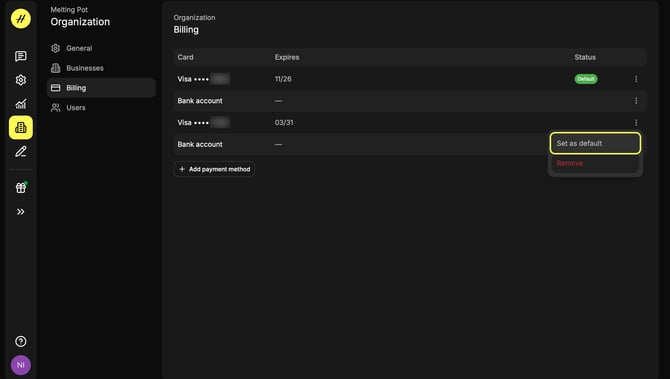
Setting a payment method as 'Default' (return to top)
- Navigate to the 'Organization' tab on the left-hand menu
- Select 'Billing'
- Select the three dots on the right-hand side of the payment method you want to set as default
- Select 'Set as deafult'
NOTE: Be sure to always have the most up to date default payment method set for your Hostie account to avoid interruptions.