Available with any of the following tiers: Essential, Premium, and Hospitality Plus
Accessible to the following roles: Organization Manager, Organization Representative, or Manager
Follow this guide to learn how to customize your restaurant's hours for a specific set of days, such as for closures or private events, without affecting your regular weekly schedule.
The steps in this guide are the same, whether you're on the Hostie dashboard for the web, the Hostie app for iPhone, or the Hostie app for iPad.
Use the links below to jump to specific areas, or read from top to bottom and use the links within each section to navigate between areas:
- Add special hours
- Add special greetings
- Edit or remove special hours
- Edit or remove special greetings
NOTE: Utilizing special hours will not block callers from making reservations outside of Hostie. You will need to block this within your reservation systems.
-
OpenTable’s support article on one-time schedule changes with Special Days
Add special hours (return to top)
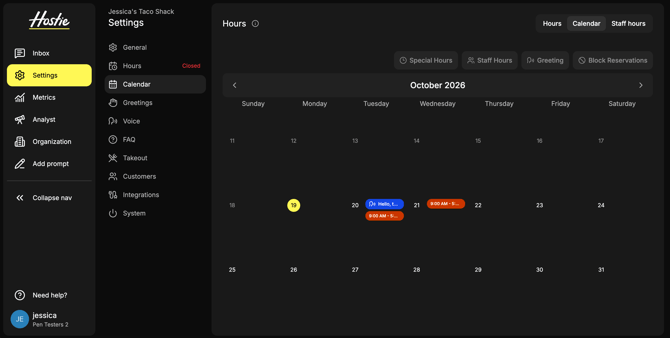
- Select 'Settings' on the left-hand menu
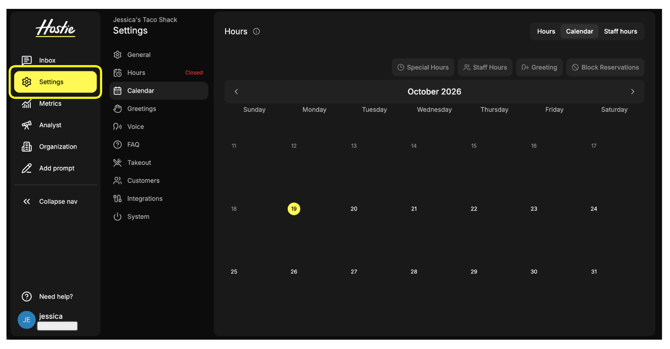
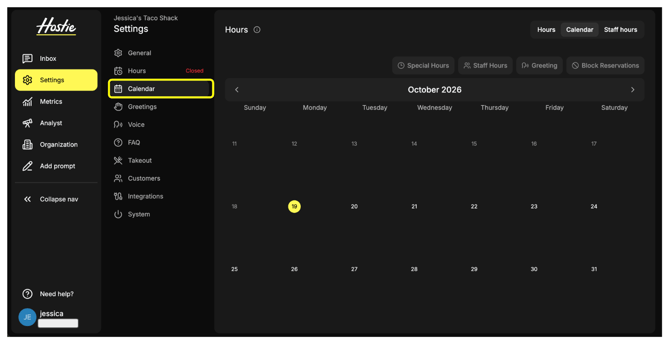
- Select 'Calendar'
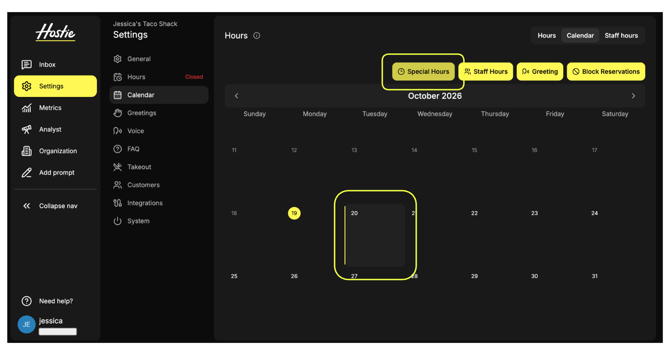
- Select the date/s you'd like to add special hours to or close, then select 'Special Hours'
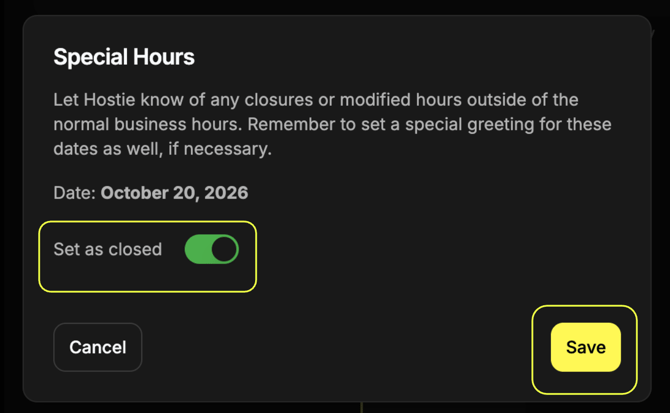
- Toggle 'Set as closed' to mark the whole day as closed, then select 'Save'
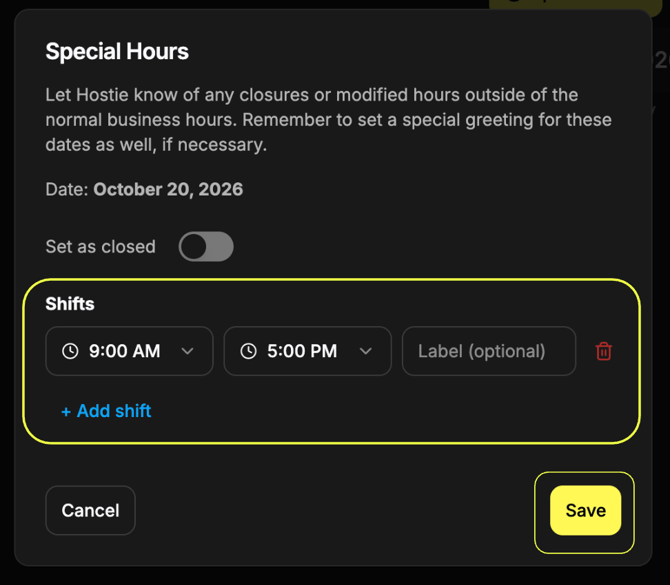
- Select 'Add shift' if you'll be open for hours that differ from your regularly set hours. Set your special hours, then select 'Save'
Add special greetings (return to top)
- Select 'Settings' on the left-hand menu
- Select 'Calendar'
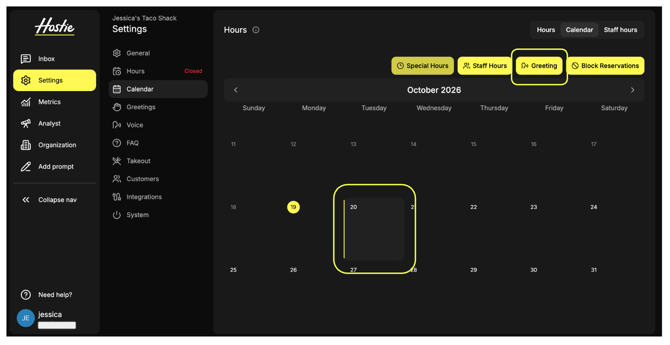
- Select the date/s you'd like to add special greetings to, then select 'Greeting'
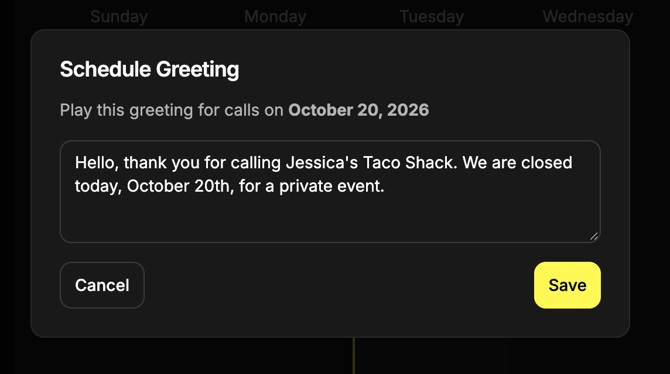
- Add a special greeting, then select 'Save'
Edit or remove special hours (return to top)
- Select 'Settings' on the left-hand menu
- Select 'Calendar'
- Select the special hour/s you'd like to edit or remove
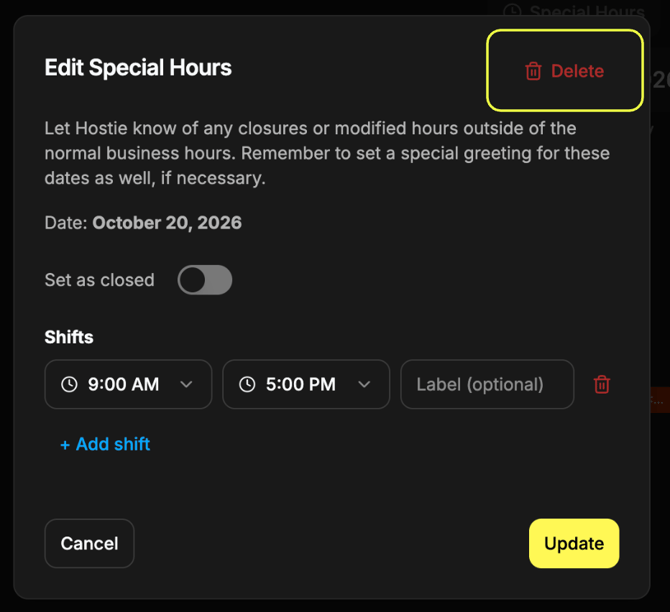
- Remove a shift by selecting the trash can icon, or remove the whole special hour by selecting the trash can icon.
Edit or remove special greetings (return to top)
- Select 'Settings' on the left-hand menu
- Select 'Calendar'
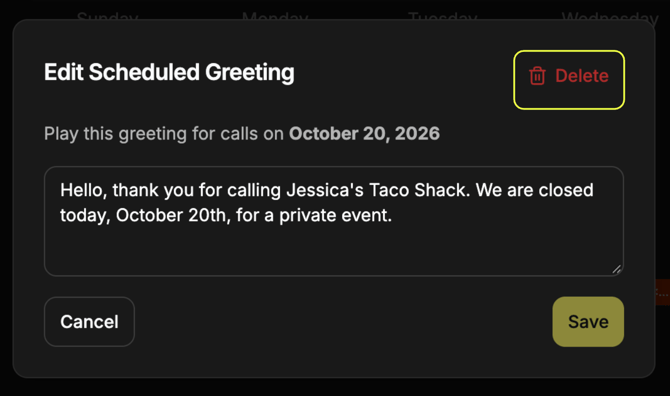
- Select the special greeting/s you'd like to edit or remove
- Remove the special greeting by selecting the trash can icon.