Available with any of the following tiers: Premium and Hospitality Plus
Accessible to the following roles: Organization Manager, Organization Representative, or Manager
Follow this guide to learn how to block reservations through Hostie for a specific set of days, such as for closures or private events.
The steps in this guide are the same, whether you're on the Hostie dashboard for the web, the Hostie app for iPhone, or the Hostie app for iPad.
Use the links below to jump to specific areas, or read from top to bottom and use the links within each section to navigate between areas:
NOTE: Utilizing "Block Reservations" will not block callers from making reservations outside of Hostie. You will need to block this within your reservation systems.
-
OpenTable’s support article on one-time schedule changes with Special Days
Block reservations
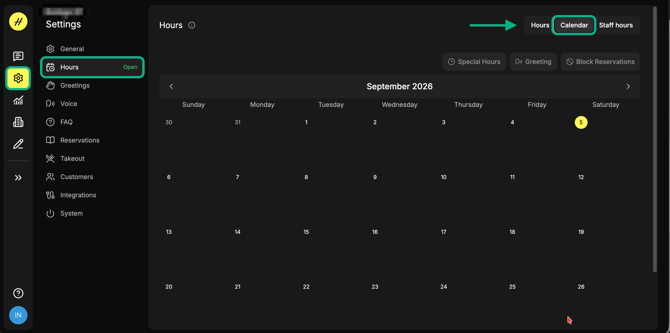
- Select 'Settings' on the left-hand menu, then select 'Hours', then select the 'Calendar' tab in the top right-hand corner to open the month view.
- Select the date/s you'd like to block reservations for, then select 'Block Reservations'
Single Day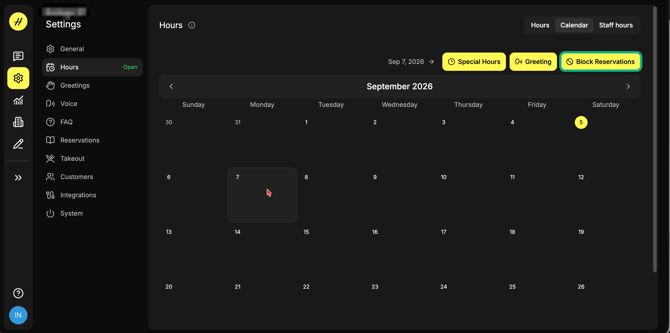
Multiple Dates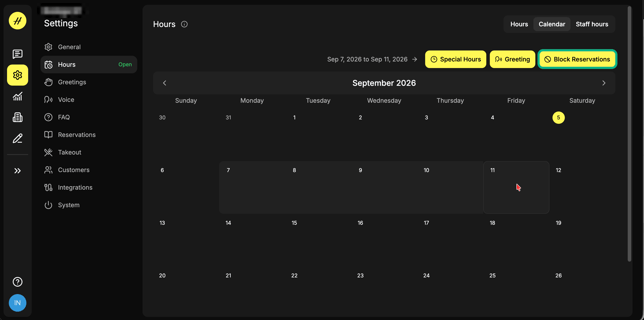
- Add a reason if needed and select 'Save' to publish the reservation blocker.
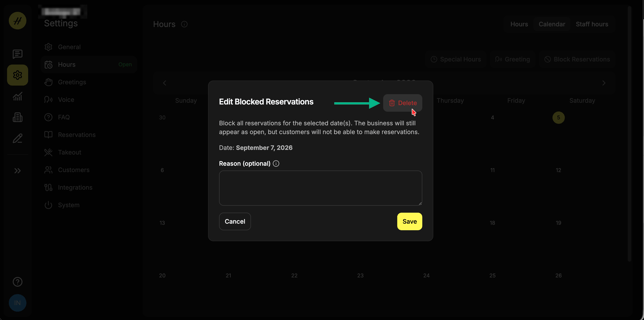
Edit or remove blocked reservations (return to top)
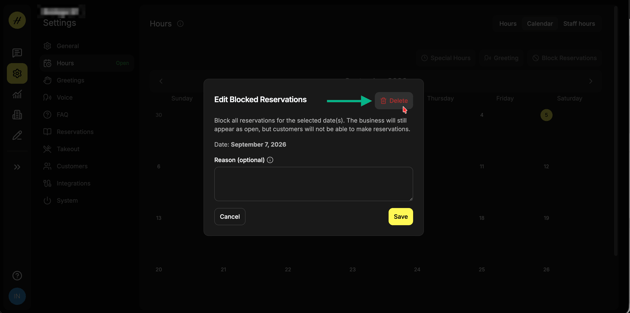
- Select the blocker button itself within the date/s you'd like to edit or remove the blocked reservation.
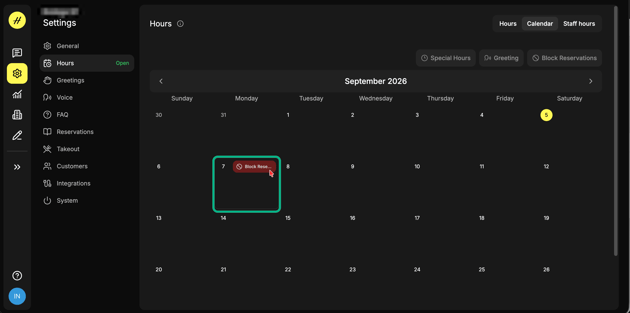
- Remove the block by selecting the 'Delete' button.