Skip to content
English
  • There are no suggestions because the search field is empty.

How to manage customers

Available with any of the following tiers: Essential, Premium, and Hospitality Plus

Accessible to the following roles: Organization Manager or Manager 

Follow this guide to learn how to manage customers through Hostie, allowing you to block/unblock phone numbers and edit their name, and/or email.

The steps in this guide are the same, whether you're on the Hostie dashboard for the web, the Hostie app for iPhone, or the Hostie app for iPad.

Use the links below to jump to specific areas, or read from top to bottom and use the links within each section to navigate between areas:

NOTE: "Blocking" a customer will not block customers from calling, emailing, or making reservations outside of Hostie.


Edit customers (return to top)
  1. Log in to your Hostie dashboard
    1. Log In to your Hostie-1
  2. Select 'Settings' on the left-hand menu
    1. 3 - Go to Settings copy
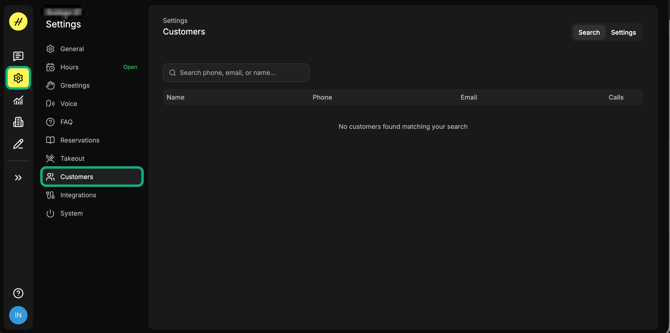
  3. Select 'Customers'
    1. Screenshot 2026-03-03 at 1.32.47 PM
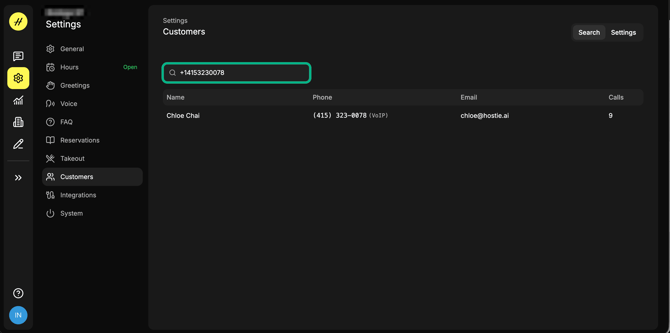
  4. In the search bar, look up the desired phone number or email address
    1. Screenshot 2026-03-03 at 1.33.01 PM
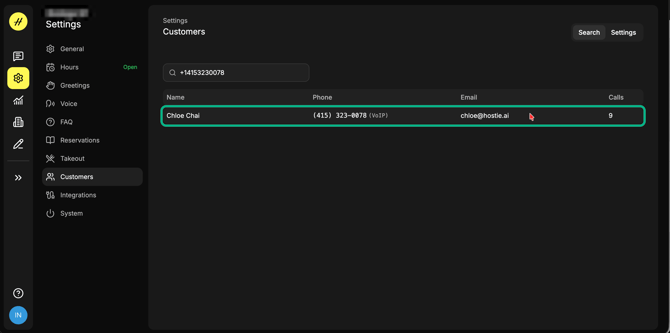
  5. Select the 'gear icon', and then 'Edit Profile'
    1. Screenshot 2026-03-03 at 1.39.22 PM
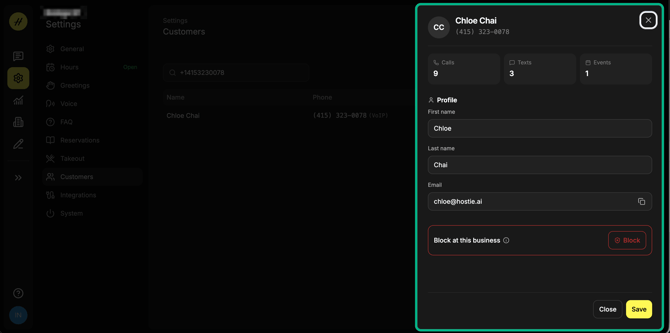
  6. Set desired name and/or email, then select 'Save'
      1. Screenshot 2026-03-03 at 1.40.09 PM
      2. Screenshot 2026-03-03 at 1.57.06 PM


        Block or unblock customers (return to top)
        1. Log in to your Hostie dashboard
          1. Log In to your Hostie-1
        2. Select 'Settings' on the left-hand menu
          1. 3 - Go to Settings copy
        3. Select 'Customers'
          1. Screenshot 2026-03-03 at 1.32.47 PM
        4. In the search bar, look up the desired phone number or email address
          1. Screenshot 2026-03-03 at 1.33.01 PM
        5. Select the 'gear icon', and then 'Block'
          1. Screenshot 2026-03-03 at 1.39.22 PM-1
        6. To unblock a customer, select the 'gear icon', and then 'Unblock'
          1. Screenshot 2026-03-03 at 1.39.34 PM