Available with any of the following tiers: Essential, Premium, and Hospitality Plus
Accessible to the following roles: Organization Manager or Manager
Follow this guide to learn how to manage users in Hostie, allowing you to add or remove a user from all or specific locations within the organization.
The steps in this guide are the same, whether you're on the Hostie dashboard for the web, the Hostie app for iPhone, or the Hostie app for iPad.
Use the links below to jump to specific areas, or read from top to bottom and use the links within each section to navigate between areas:
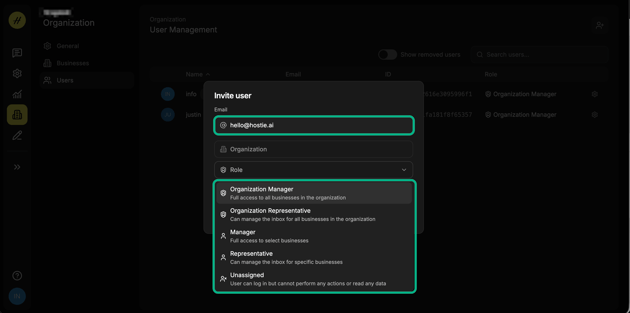
Types of Roles/Access Privileges:
-
Organization Manager - Full access to all businesses in the organization.
-
Organization Representative - Can manage the inbox for all businesses in the organization.
-
Manager - Full access to select businesses.
-
Representative - Can manage the inbox for specific businesses.
Add user (return to top)
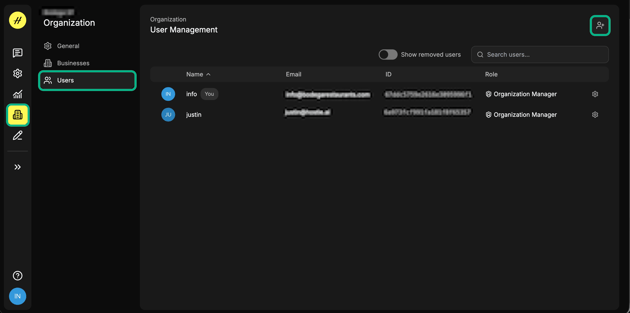
- Select 'Organization' > 'Users' in the left-hand menu, then select the '+' icon in the top right-hand corner of the screen.
- Enter the new user's email address, role , and locations (if applicable), then select 'Send Invite' to email them an invitation to join your organization's Hostie.
- Reach out to help@hostie.ai if you need assistance adding a user.
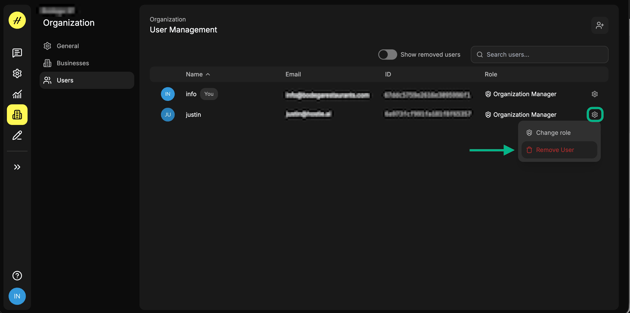
Pro tip: The type of access can be changed at any time. In the same page, select the 'gear icon' next to the desired user, then select 'Change role'
Remove user (return to top)
- Select 'Organization' > 'Users' in the left-hand menu. Select the 'gear icon' next to the desired user, and then select 'Remove User' - this action cannot be undone.