Available with any of the following tiers: Premium, and Hospitality Plus
Follow this guide to learn how to set up your integration with SevenRooms.
The steps in this guide are the same, whether you're on the Hostie dashboard for the web, the Hostie app for iPhone, or the Hostie app for iPad.
Use the links below to jump to specific areas, or read from top to bottom and use the links within each section to navigate between areas:
How it works (return to top)
- When a customer calls and asks to make a reservation, we’ll collect their information (name, date, time, and special notes). We'll see if availability for the desired time exists, and if so, the reservation will be made. If no availability exists, we'll offer alternative times or dates.
How to set up a SevenRooms integrations (return to top)
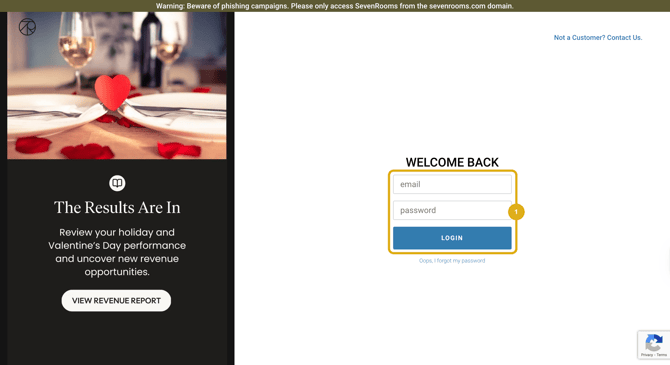
- Log in to your SevenRooms
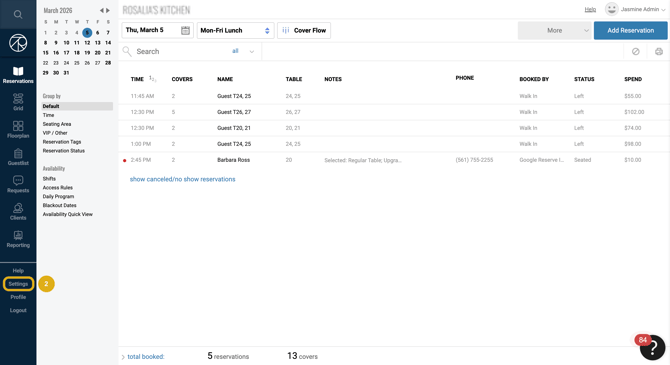
- Select 'Settings' at the bottom-left corner of the screen
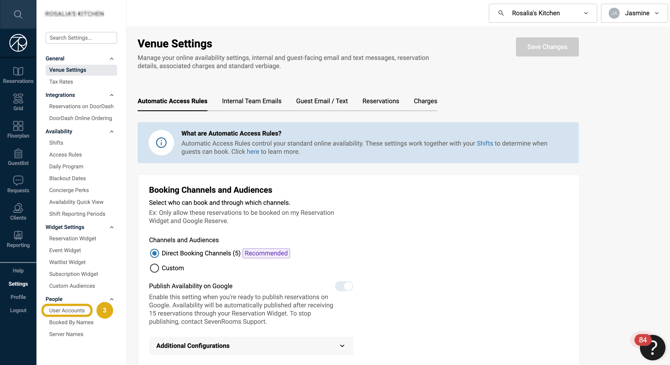
- Under the section 'People', select 'User Accounts'
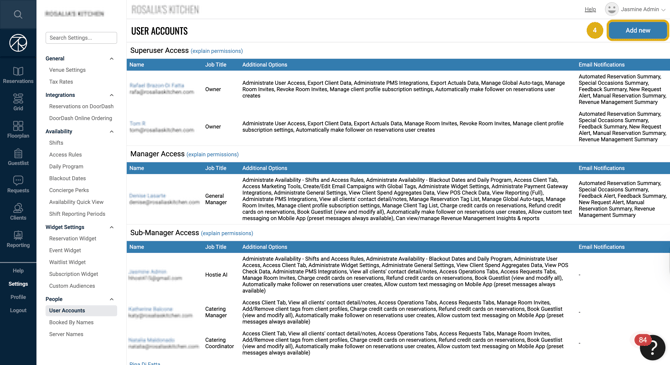
- Select 'Add new' at the top-right corner of the screen
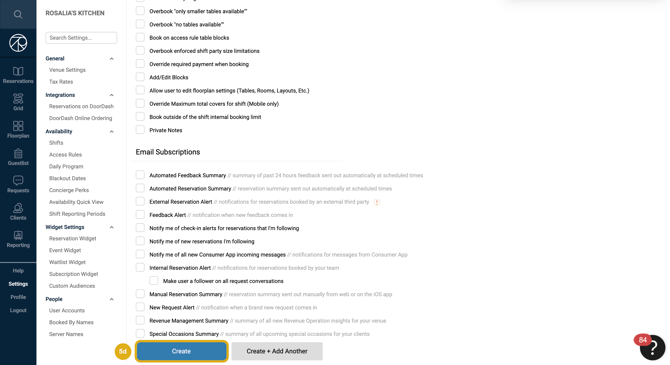
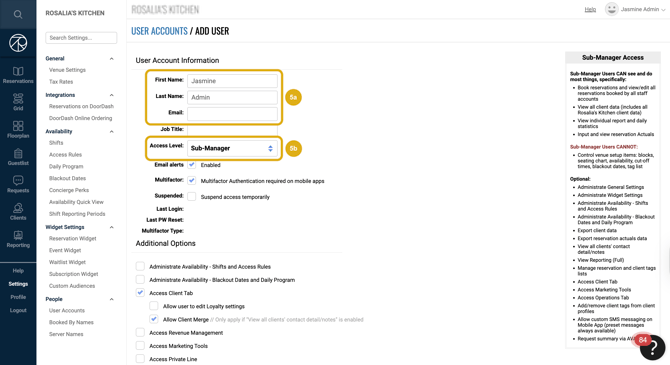
- Fill in the required User Account Information, select the required Additional Options, then
-
User Account Information:
First Name - Zara
Last Name - Lee
Email - email address we requested or provided
Access Level - Sub-Manager
-
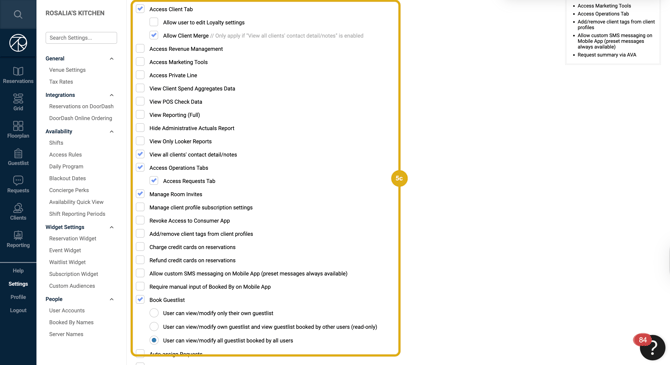
Additional Options:
- Access Client Tab
- Allow Client Merge
- View all clients' contact detail/notes
- Access Operations Tabs
- Access Requests Tab
- Manage Room Invites
- Book Guestlist
- User can view/modify all guestlist booked by all users
- Automatically make follower on reservations user creates
- Access Client Tab
- Select 'Create'
- You should receive an email from SevenRooms prompting you to create a password for your new user. Please share the email used for this user along with the password with us.