
Available with any of the following plans: Premium, and Hospitality Plus
Accessible to the following roles: Organization Manager, Organization Representative, or Manager
Hostie can automatically book and manage reservations over the phone using OpenTable. Follow this guide to learn how set up your integration with OpenTable.
Use the links below to jump to specific areas, or read from top to bottom and use the links within each section to navigate between areas:
How it works (return to top)
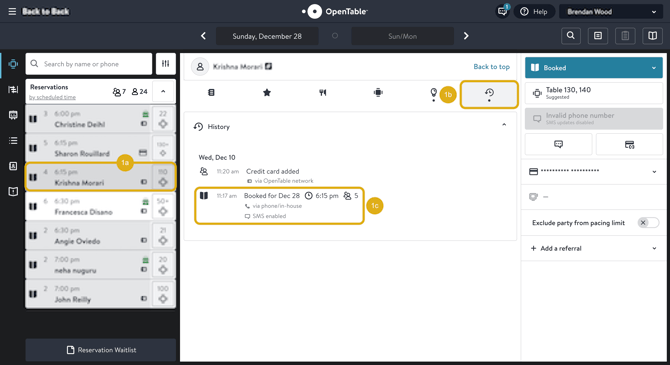
- When a customer calls and asks to make a reservation, we’ll collect their information (name, date, time, and special notes). We'll see if availability for the desired time exists, and if so, the reservation will be made. If no availability exists, we'll offer alternative times or dates. Once the call ends, OpenTable will send a confirmation message to the guest, and if you see a reservation booked with “via phone/in-house" you know it was booked by Hostie.
How to set up an OpenTable integration (return to top)
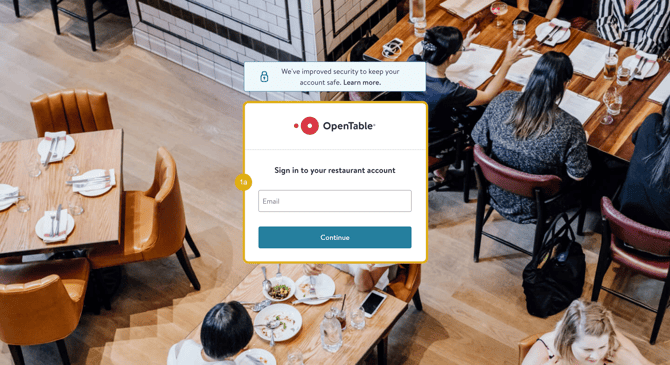
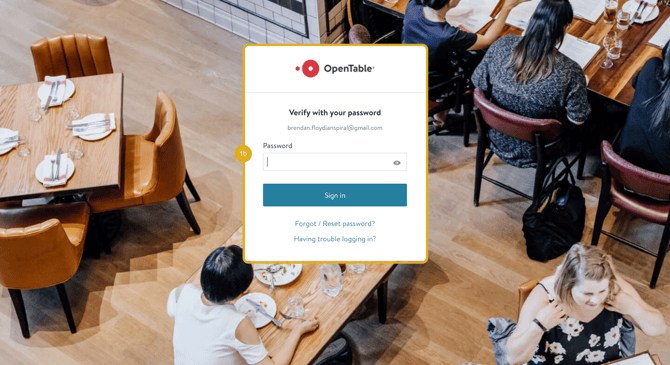
- Log in to your OpenTable guest center
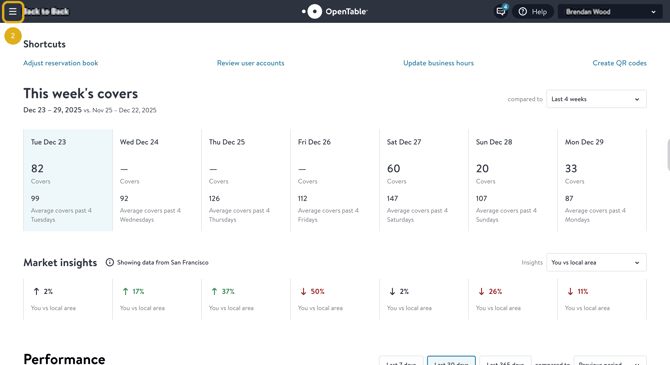
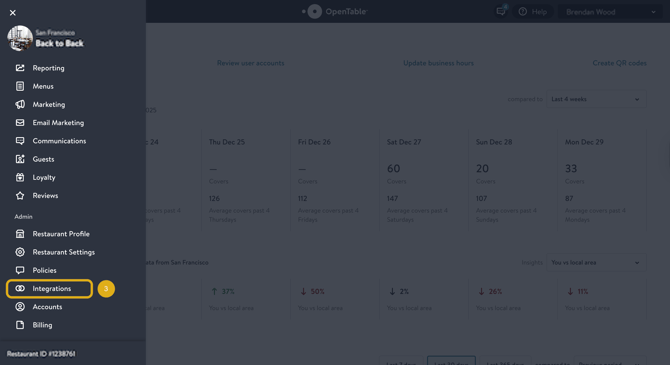
- Select the hamburger at the top-left corner of the screen to open the navigation menu
- Scroll down the navigation menu and select 'Integrations'
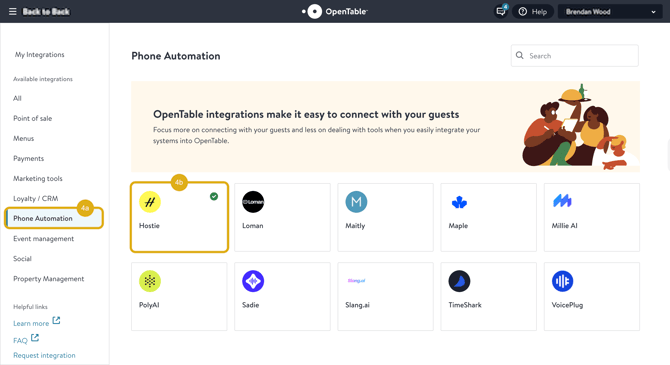
- Navigate to 'Phone Automation' and select 'Hostie'
- Select 'Get Started', and you'll be asked to connect the integration
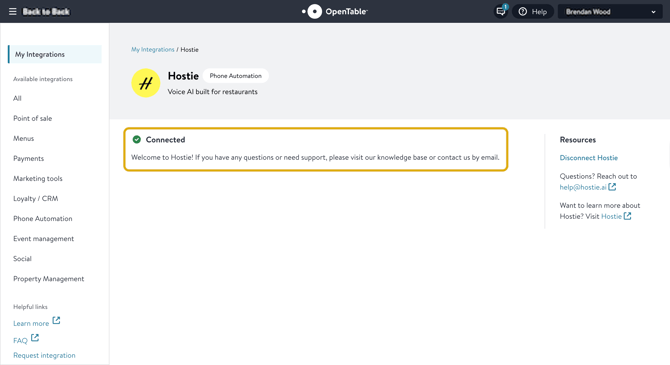
- Once complete, you'll see Hostie 'Connected" in your OpenTable dashboard
NOTE: Check your availability planning settings, as this is what is reflected when we book for you. If you do not see this available, reach out to opentable@hostie.ai to upgrade their account or if you have any questions.