
Want to stay in the loop without living in your inbox? Hostie lets you turn on email and push notifications so you catch the updates that matter most.
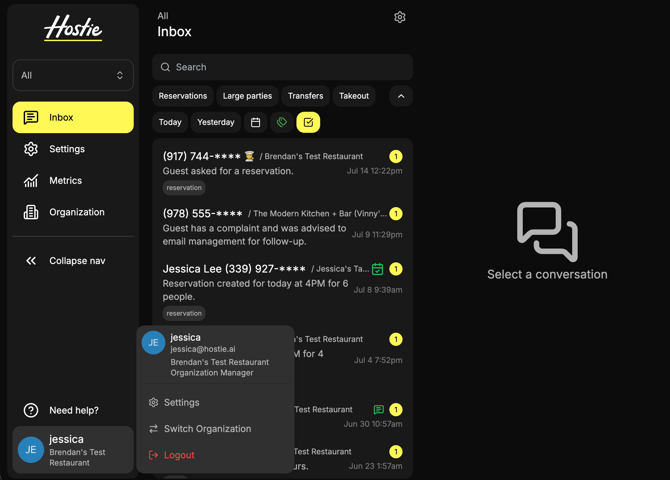
Where to find it:- Click your name in the bottom left corner of the app.
- Select Settings from the menu.
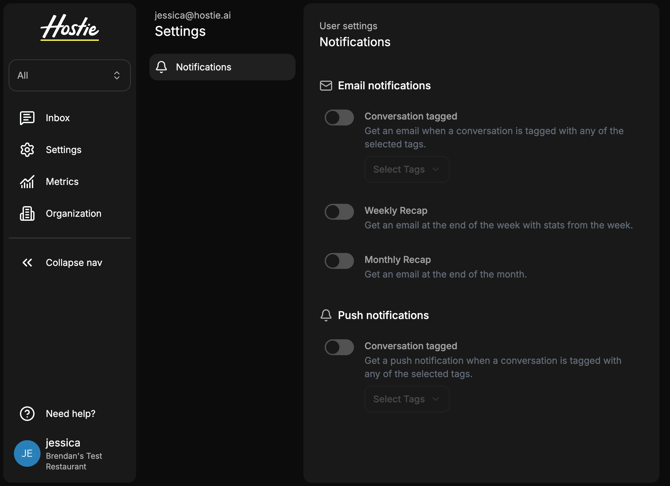
- Click Notifications in the left panel.
Email notifications
-
Conversation tagged: Turn this on to get an email whenever a conversation is tagged with any of the tags you select. Click Select Tags to choose which ones should trigger an alert.
-
Weekly Recap: Get an email at the end of each week with a summary of your stats.
-
Monthly Recap: Get an email at the end of each month with a summary of your stats.
-
Conversation tagged Same idea as the email version. Turn this on and pick your tags under Select Tags to get a push notification any time a conversation is tagged with one of them.
Just click the toggle next to any notification type. It'll switch from gray to on, and for tag-based alerts, make sure you've also selected which tags should trigger it.
That's it! You can mix and match whichever notifications fit how you like to stay updated.