Available with any of the following plans: Essential, Premium, and Hospitality Plus
The Hostie app is a robust and powerful app that runs on iPhone and iPad, and can be downloaded within the App Store. This introduction provides a high-level overview of the major areas of the app and includes external links to demonstrate specific workflows.
Use the links below to jump to specific areas, or read from top to bottom and use the links within each section to navigate between areas:
- To view an Introduction to the Hostie dashboard on the web
-
To view an Introduction to the Hostie app for iPhone
-
Introduction to Hostie App for the following role: Representative
-
Introduction to Hostie App for the following roles: Organization Manager, Organization Representative, or Manager
Introduction to Hostie App for the following role: Representative
Accessible to the following role: Representative
Getting Started (return to top)
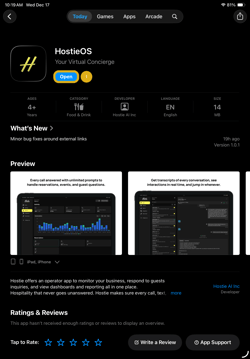
- Download the Hostie App from the App Store
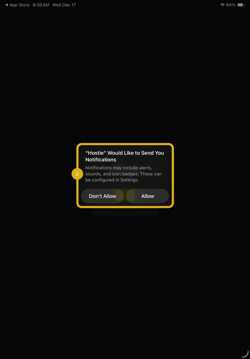
- Select Allow when prompted with ""Hostie" Would Like to Send You Notifications. Notifications may include alerts, sounds, and icon badges. These can be configured in Settings."
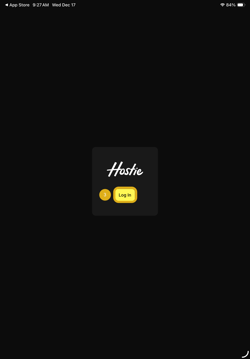
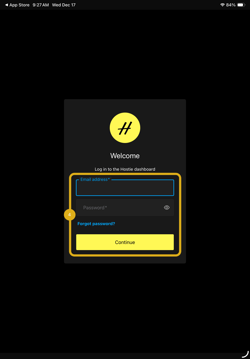
- Select Log In
- Log in to your Hostie App
Inbox (return to top)
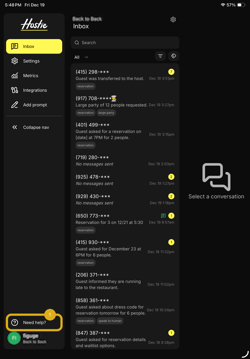
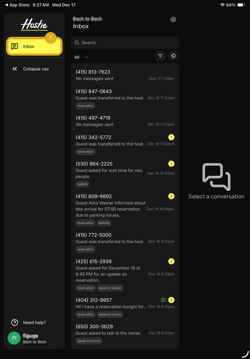
- Inbox tab
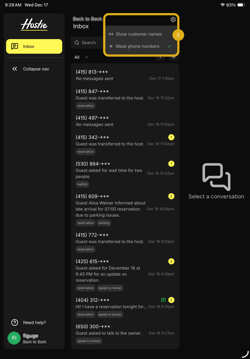
- Inbox Settings, Set visibility settings for your inbox
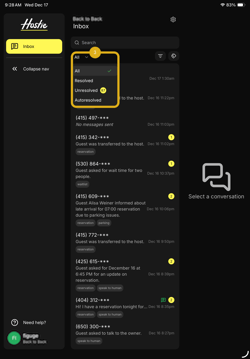
- Inbox Sorting, sort inbox by Resolved, Unresolved, or Autoresolved
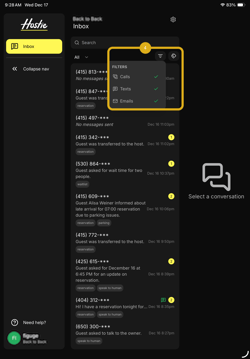
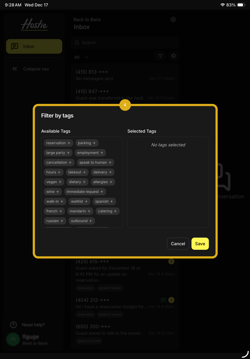
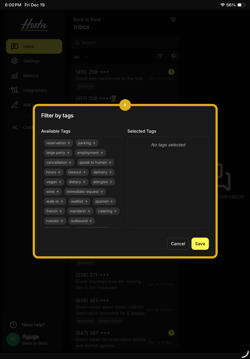
- Inbox Filter, filter inbox by Calls, Texts, Emails, and by Tags
-
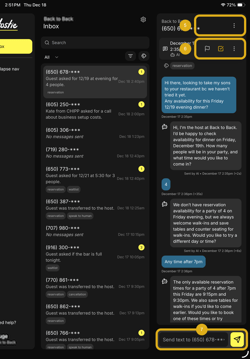
- Phone Number Actions, sort call by Resolved, Unresolved, or Autoresolved
- Call Actions, flag the call for help, mark the call as Resolved, and copy link to share
- Text Actions, text the caller
Need Help (return to top)
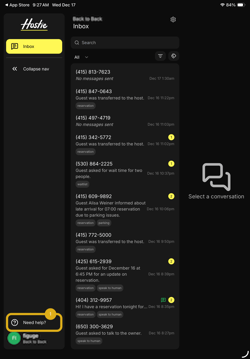
- Need help? tab. If you need help, view our Hostie article on how to Contact Hostie to learn more
Introduction to Hostie App for the following roles: Organization Manager, Organization Representative, or Manager
Accessible to the following roles: Organization Manager, Organization Representative, or Manager
Getting Started (return to top)
- Download the Hostie App from the App Store
- Select Allow when prompted with ""Hostie" Would Like to Send You Notifications. Notifications may include alerts, sounds, and icon badges. These can be configured in Settings."
- Select Log In
- Log in to your Hostie App
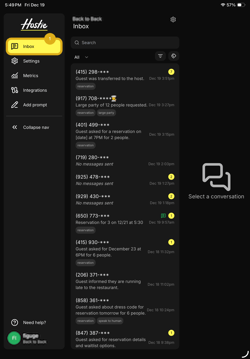
Inbox (return to top)
- Inbox tab
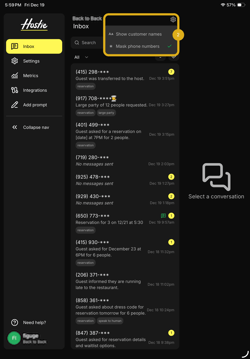
- Inbox Settings, Set visibility settings for your inbox
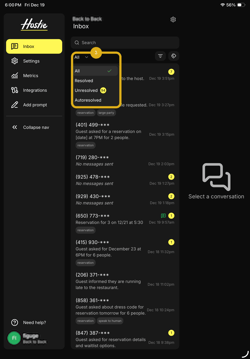
- Inbox Sorting, sort inbox by Resolved, Unresolved, or Autoresolved
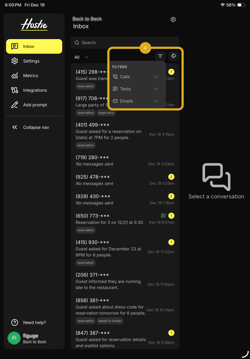
- Inbox Filter, filter inbox by Calls, Texts, Emails, and by Tags
-
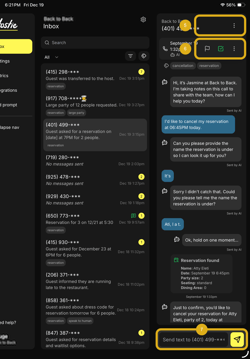
- Phone Number Actions, call the number back, or sort call by Resolved, Unresolved, or Autoresolved
- Call Actions, flag the call for help, mark the call as Resolved, and copy link to share
- Text Actions, text the caller
Settings (return to top)
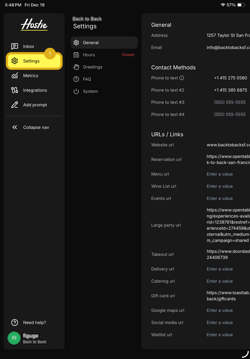
- Settings tab
Metrics (return to top)
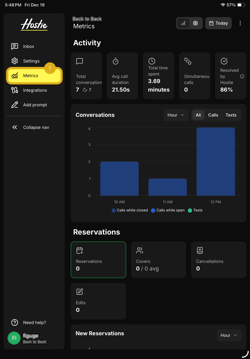
- Metrics tab
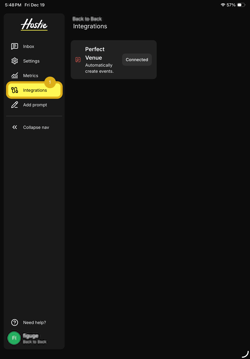
Integrations (return to top)
- Integrations tab
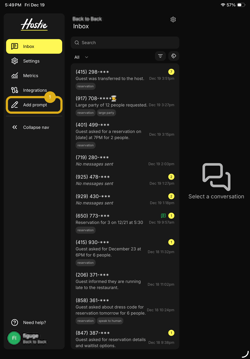
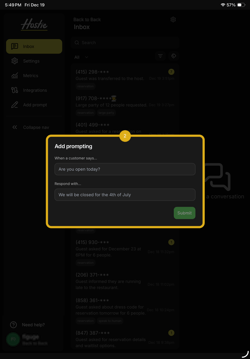
Prompt Request (return to top)
- Add prompt tab
Need Help (return to top)
- Need help? tab. If you need help, view our Hostie article on how to Contact Hostie to learn more