
Available with any of the following plans: Essential, Premium, and Hospitality Plus
This article covers the need-to-know details on signing into your Hostie account. Read on to learn about how to reset your password, how to manage users, and more.
The steps in this guide are the same, whether you're on the Hostie dashboard for the web, the Hostie app for iPhone, or the Hostie app for iPad.
Use the links below to jump to specific areas, or read from top to bottom and use the links within each section to navigate between areas:
- "How to" for the following roles: Organization Manager, Organization Representative, Manager, or Representative
-
- "How to" for the following roles: Organization Manager, Organization Representative, or Manager
"How to" for the following roles: Organization Manager, Organization Representative, or Manager
Accessible to those with the following roles: Organization Manager, Organization Representative, Manager, or Representative
Sign in to Hostie (return to top)
- Log in to your Hostie dashboard
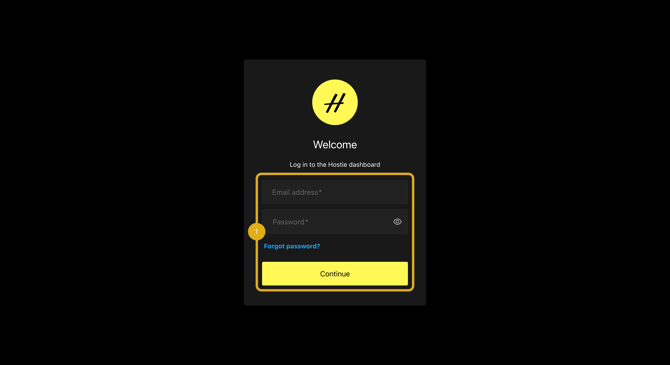
The Hostie app was created to view the history of all phone calls and resolve and unresolve any conversations. Also, you may use it to program new responses.
NOTE: Hostie logins can be used for as many devices as needed. For security reasons, it's recommended that each individual has their own Hostie login with their specific role and permissions assigned. Learn more about user permissions.
Create a new login (return to top)
- Contact Hostie with the email addresses you would like to receive logins for. Include the user permission for each email.
- Follow the steps below to get started:
-
- Accept invitation
- Selecting a restaurant/location
- Bookmark the URLin your browser
Accept invitation
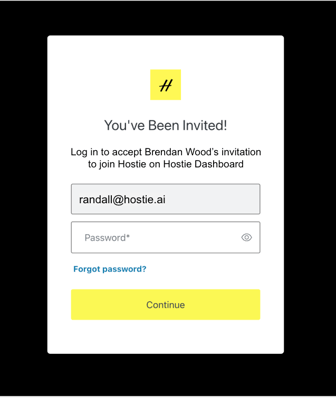
- You should receive an invitation to the app in your email inbox. Open the email, and click accept. The first thing you should do is set a password. Note: Each organization will have a shared login and password to use amongst all restaurants.
Select a restaurant/location
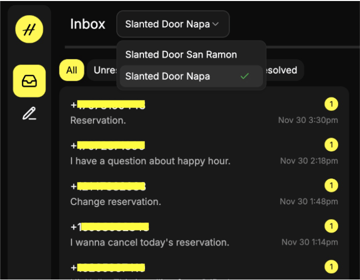
- If you have access to multiple restaurants/locations, once you log in, you’ll see the ability to choose a restaurants/locations in the top left-hand corner.
If you’re using a computer, bookmark the URL in your browser.
Hostie roles/access (return to top)
- Contact Hostie to manage employee access by
User permissions in Hostie allow you to ensure that your restaurant staff have access to the exact features they need based on their role. You have the option to choose from the five preset roles. Please notify your customer success representative of which roles you would like assigned to which user.
- Organization Manager: Full access to all the businesses in the organization
- Organization Representative: Can manage the inbox for all businesses in the organization
- Manager: Full access to select businesses
- Representative: Can manage the inbox for specific businesses
- Unassigned: The user can log in but cannot perform any actions or read any data
Reset password (return to top)
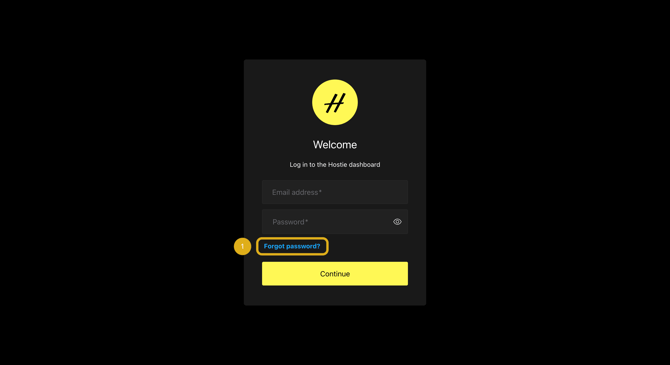
- Go to the Hostie dashboard, and select 'Forgot password?' to reset your password.
Introduction to Hostie
- To view an Introduction to the Hostie dashboard on the web
- To view an Introduction to the Hostie app for iPhone
-
To view an Introduction to the Hostie app for iPad
"How to" for the following roles: Organization Manager, Organization Representative, or Manager
Accessible to the following roles: Organization Manager, Organization Representative, or Manager
Remove or edit a user (return to top)
- Contact Hostie with the email address you would like to be remove or edit.