Available with any of the following plans: Essential, Premium, and Hospitality Plus
Accessible to the following roles: Organization Manager, Organization Representative, or Manager
Follow this guide to learn how set up your integration with Perfect Venue.
The steps in this guide are the same, whether you're on the Hostie dashboard for the web, the Hostie app for iPhone, or the Hostie app for iPad.
Use the links below to jump to specific areas, or read from top to bottom and use the links within each section to navigate between areas:
- How it works
- How to set up a Perfect Venue Integration via the Hostie dashboard on the Web
- How to set up a Perfect Venue Integration via the Hostie app for iPhone
- How to set up a Perfect Venue Integration via the Hostie app for iPad
How it works (return to top)
- When a customer calls and asks for a private event, we’ll collect their information (name, date, time, occasion, and duration of event. Once the call ends, we’ll create a new event in Perfect Venue with “Created by Hostie” so you know it was booked by Hostie. We’ll send you a text notification too.
How to set up a Perfect Venue Integration via the Hostie dashboard on the Wed (return to top)
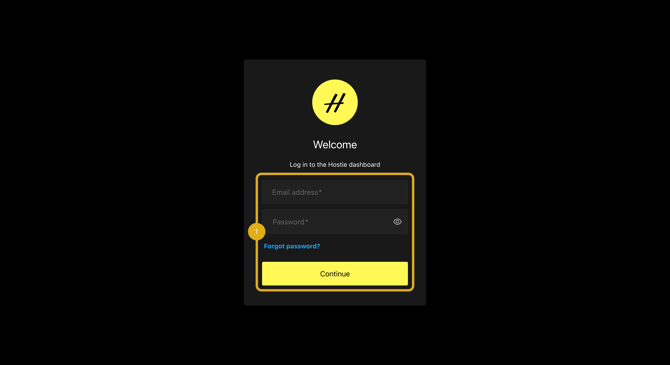
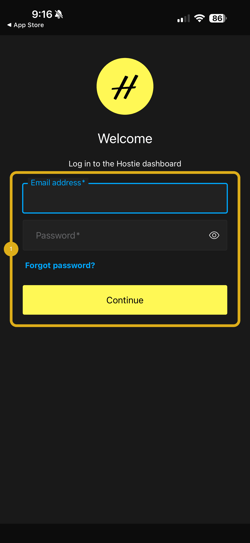
- Log in to your Hostie dashboard
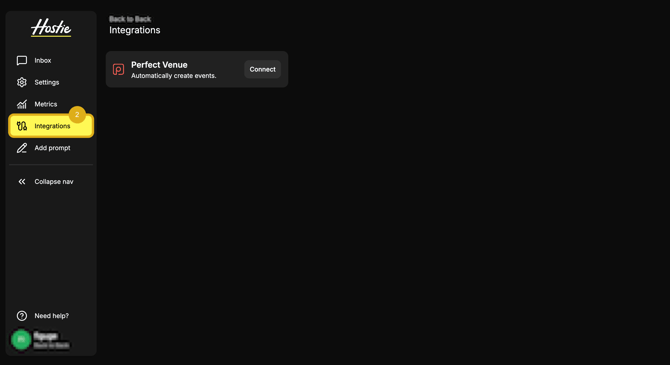
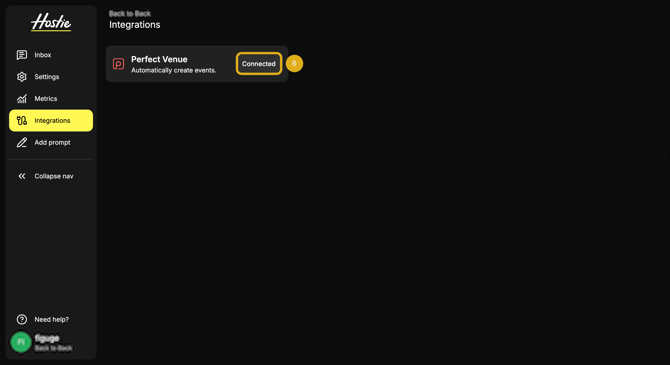
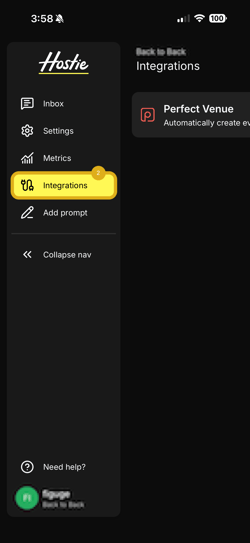
- Select 'Integrations' on the left-hand menu
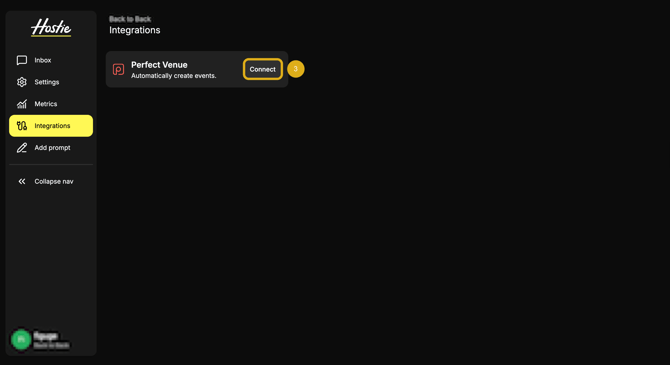
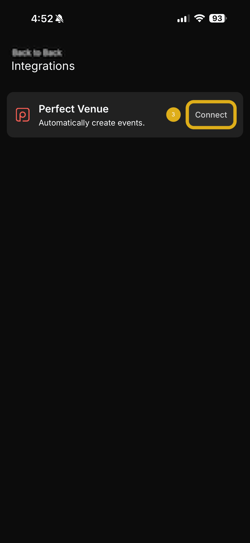
- Select 'Connect' within the Perfect Venue Integration tile. Clicking on this button will open up a new web page for Perfect Venue Authorization Login.
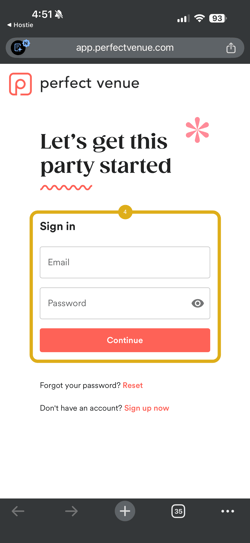
- Log into your Perfect Venue. Logging in to this Perfect Venue Integration will grant Hostie access to be able to post Event Leads to your Perfect Venue.
- Upon logging in, you will be redirected back to Hostie with a Success page! If this does not occur. Please reach out to us at help@hostie.ai.
- After this is done. The integration will kick in within the next 10 minutes. This is automatic, and everything will happen under the scenes!

How to set up a Perfect Venue Integration via the Hostie app for iPhone (return to top)
- Log in to your Hostie App
- Select 'Integrations' on the left-hand menu
- Select 'Connect' within the Perfect Venue Integration tile. Clicking on this button will open up a new web page for Perfect Venue Authorization Login.
- Log into your Perfect Venue. Logging in to this Perfect Venue Integration will grant Hostie access to be able to post Event Leads to your Perfect Venue.
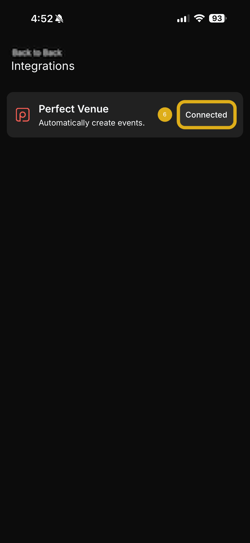
- Upon logging in, you will be redirected back to Hostie with a Success page! If this does not occur. Please reach out to us at help@hostie.ai.
- After this is done. The integration will kick in within the next 10 minutes. This is automatic, and everything will happen under the scenes!
How to set up a Perfect Venue Integration via the Hostie app for iPad (return to top)
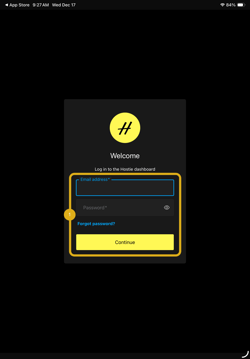
- Log in to your Hostie App
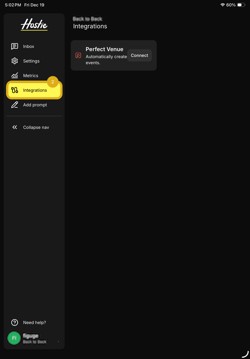
- Select 'Integrations' on the left-hand menu
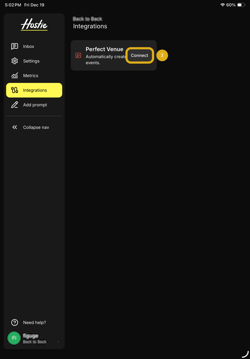
- Select 'Connect' within the Perfect Venue Integration tile. Clicking on this button will open up a new web page for Perfect Venue Authorization Login.
-
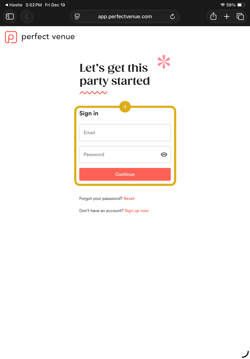
- Log into your Perfect Venue. Logging in to this Perfect Venue Integration will grant Hostie access to be able to post Event Leads to your Perfect Venue.
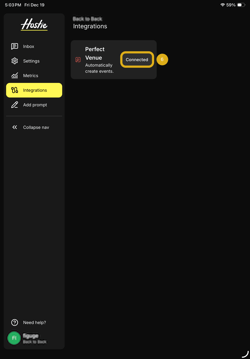
- Upon logging in, you will be redirected back to Hostie with a Success page! If this does not occur. Please reach out to us at help@hostie.ai.
- After this is done. The integration will kick in within the next 10 minutes. This is automatic, and everything will happen under the scenes!