
Available with any of the following plans: Essential, Premium, and Hospitality Plus
Accessible to the following roles: Organization Manager, Organization Representative, or Manager
Follow this guide to learn how to set your restaurant's regular weekly hours. These do not include special hours or closures. Setting operating hours lets Hostie know the opening and closing times of your business, which can then be used during conversations when needed.
The steps in this guide are the same, whether you're on the Hostie dashboard for the web, the Hostie app for iPhone, or the Hostie app for iPad.
Use the links below to jump to specific areas, or read from top to bottom and use the links within each section to navigate between areas:
-
Add or update your hours for the following plan: Essential
-
Add or update your hours for the following plans: Premium and Hospitality Plus
Add or update your hours for the following plan: Essential (return to top)
Available to the following plan: Essential
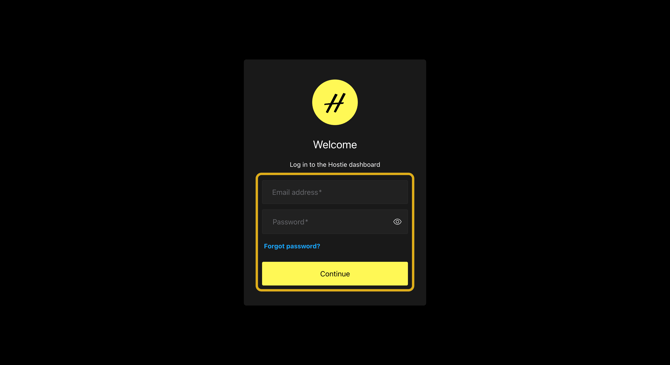
- Log in to your Hostie dashboard
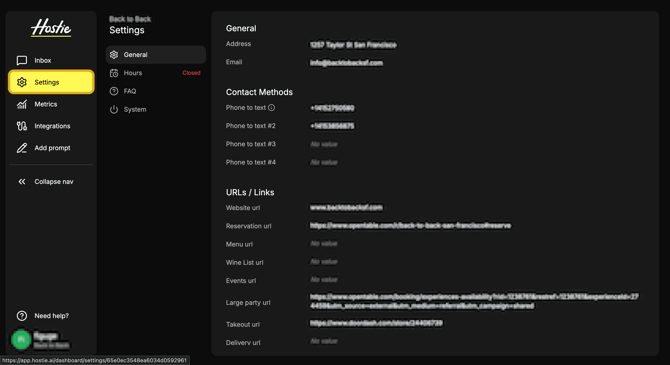
- Select 'Settings' on the left-hand menu
- Select 'Hours'
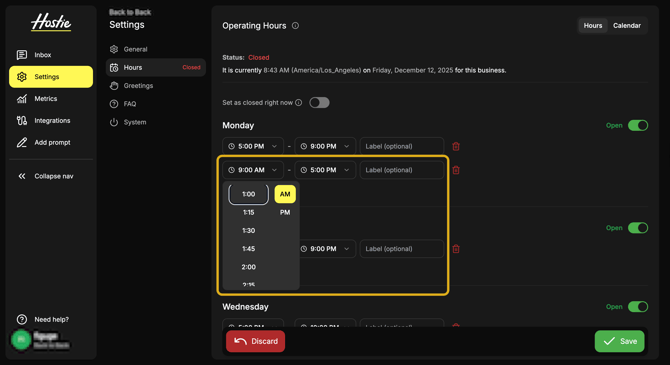
- Select 'Add Time Slot' next to the day you want to add hours to
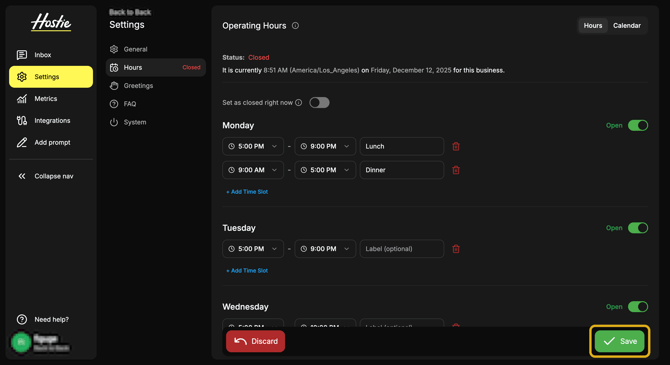
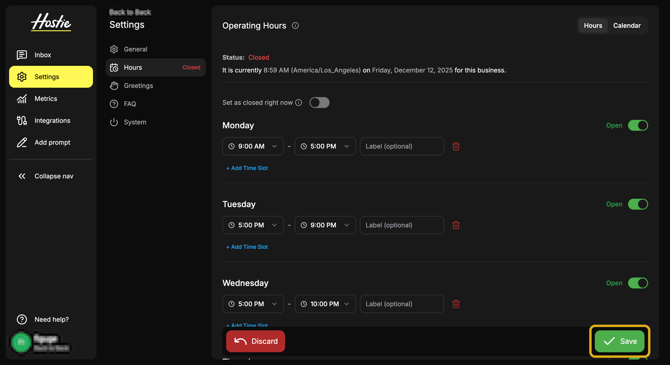
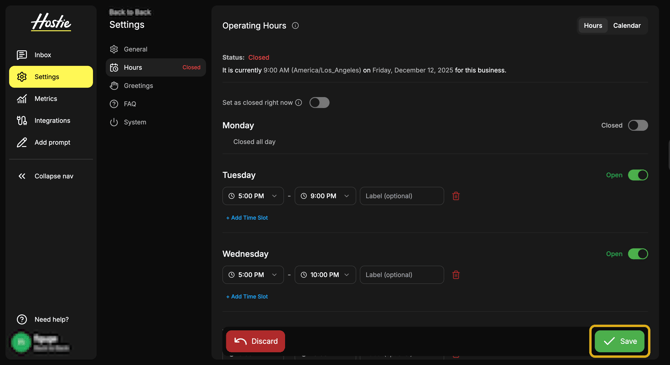
- Set desired times for each day, then select 'Save'
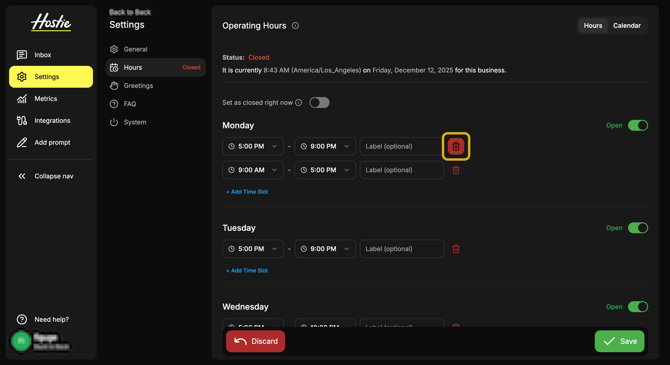
- If you wish to delete or remove a time slot from select the trash can icon to the right of the time you wish to remove, then select 'Save'
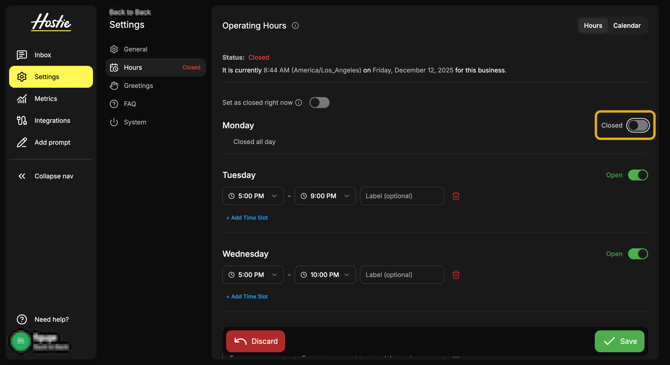
- If you wish to set a day regulary as "closed" select "Open" to mark the day as "Closed", then select 'Save'
- If you wish to set "special hours" for holidays or events, simply change the time slot for the particular day/s, then change them back after the day/s have passed
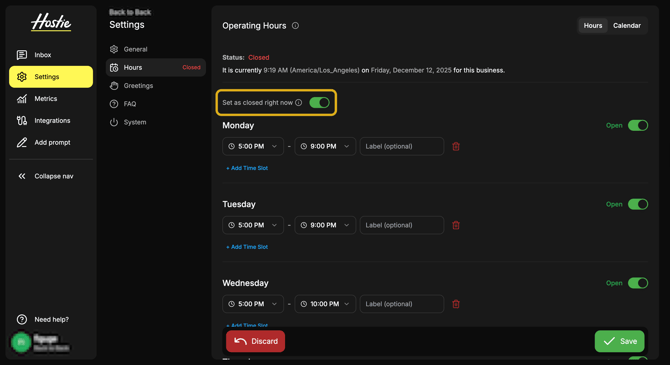
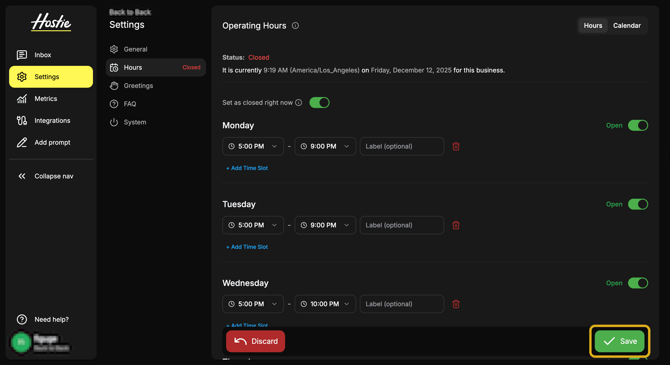
- If you wish to set the restaurant as "closed" for holidays or events, select "Set as closed right now" toggle, then select 'Save'. This will override the operating hours, without having to edit the hours.
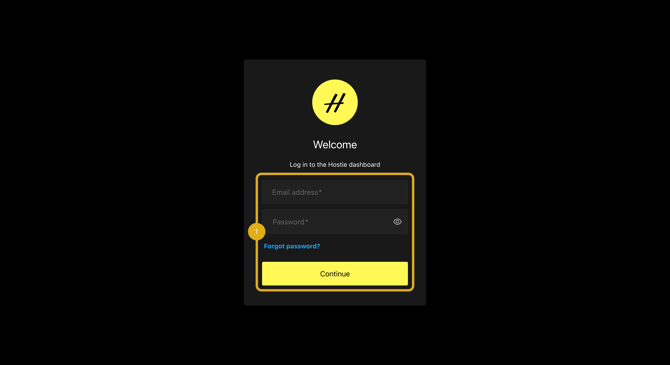
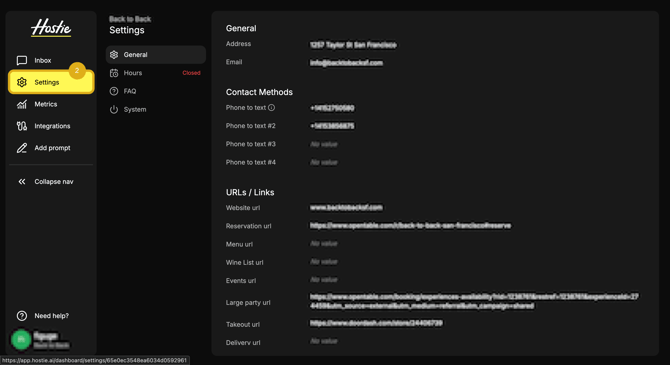
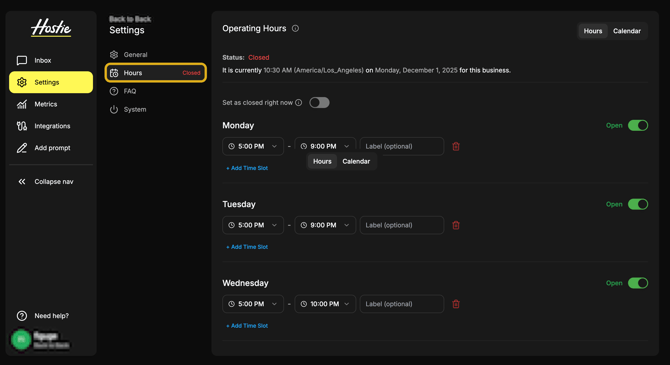
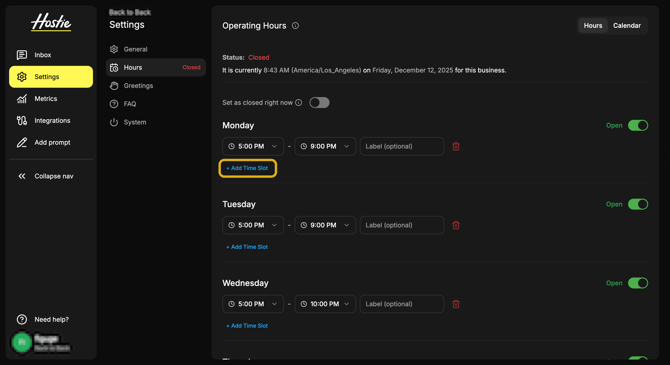
NOTE: Marking a restaurant "Closed" or utilizing "Set as closed right now" will not block callers from making reservations outside of Hostie. Merchants will need to block this within their reservation systems.
-
OpenTable’s support article on hot to customize your availability, schedule, and shift settings
Add or update your hours for the following plans: Premium, and Hospitality Plus (return to top)
Available to any of the following plans: Premium, and Hospitality Plus
- Log in to your Hostie dashboard
- Select 'Settings' on the left-hand menu
- Select 'Hours'
- Select 'Add Time Slot' next to the day you want to add hours to
- Set desired times for each day, then select 'Save'
- If you wish to delete or remove a time slot from select the trash can icon to the right of the time you wish to remove, then select 'Save'
- If you wish to set a day regulary as "closed" select "Open" to mark the day as "Closed", then select 'Save'
- If you wish to set special hours for holidays, events, and/or closures, view our Hostie article on how to Add special hours or a special greeting to learn more
NOTE: Marking a restaurant "Closed" or utilizing "Set as closed right now" will not block callers from making reservations outside of Hostie. Merchants will need to block this within their reservation systems.
-
OpenTable’s support article on hot to customize your availability, schedule, and shift settings